Showing posts with label Dynamics. Show all posts

Saturday, May 2, 2020

How to Customize a standard report in Dynamics Business Central SaaS


Good day to you..…

From this article, I am going to give a solution to a problem which I have seen most of forums. As all of you are aware, still we are not given any proper way to customize a standard report in Dynamics 365 Business Central SaaS version.
Here I am explaining how to create a copy of a standard report from an extension. From that you all can customize a copy of any standard report. To fulfill this scenario, there are 3 main steps.

  1. Copy the standard report AL code to an extension.
  2. Create a copy of the standard report layout.
  3. Merge the AL code and the report layout.
1.Copy the standard report AL code to the extension.

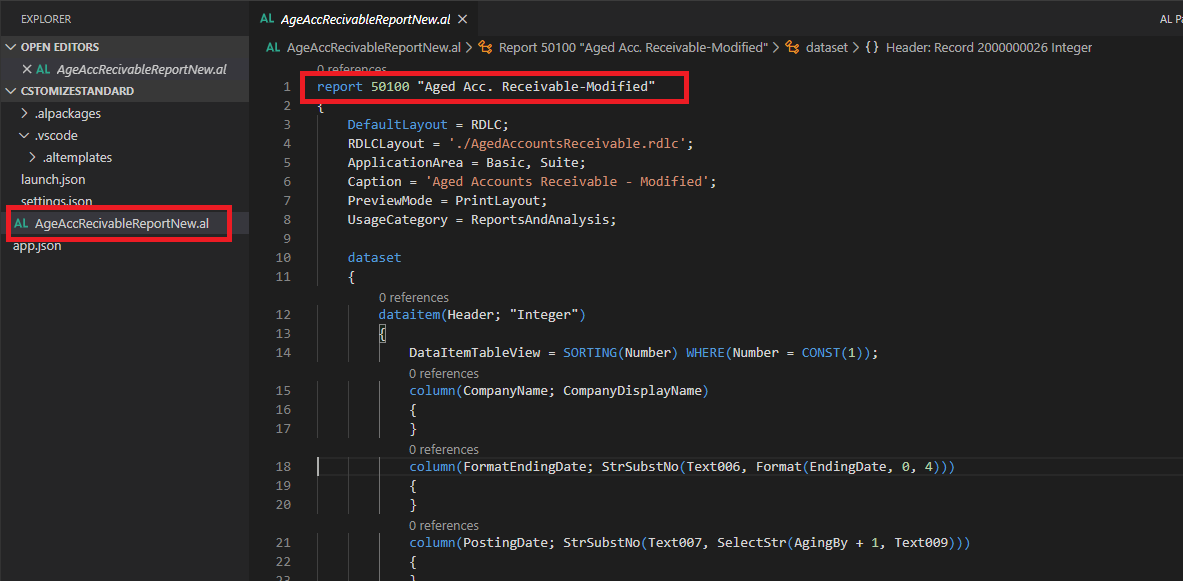
In Business Central SaaS version, Microsoft has not facilitated us to view the base application code directly. But here I am going to copy the AL code of the standard report from the base application library. For that i have already installed the AZ AL Dev Tools/AL Code Outline tool in VS code. Using that tool I can go to the definition of the report. After copying the whole code of the report, I am pasting it in another AL file which is going to be published as a new report. For an example, here I am copying the Aged Account Receivable Report as an extension. Then change the id to 50k range and rename the report. Here I have only the AL code, so I have to find the exact layout matching with this AL code.

Ok. 1st step is done.


2.Create a copy of the standard report layout.

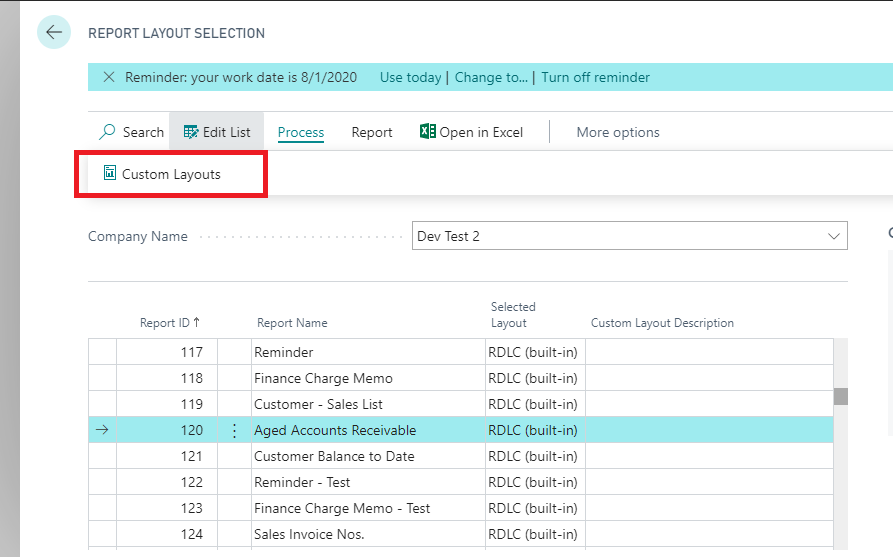
As all you know we can create any number of custom layouts for any report. So I am going to create a custom layout of the standard report. Here I am creating a copy from the built-in layout. Because we want the original layout of the standard report. Then using the Export Layout option i can download the layout as rdl format. Now i have both AL code and as well as the layout. Next step is explained how to merge these two files.


3.Merge the AL code and the report layout.

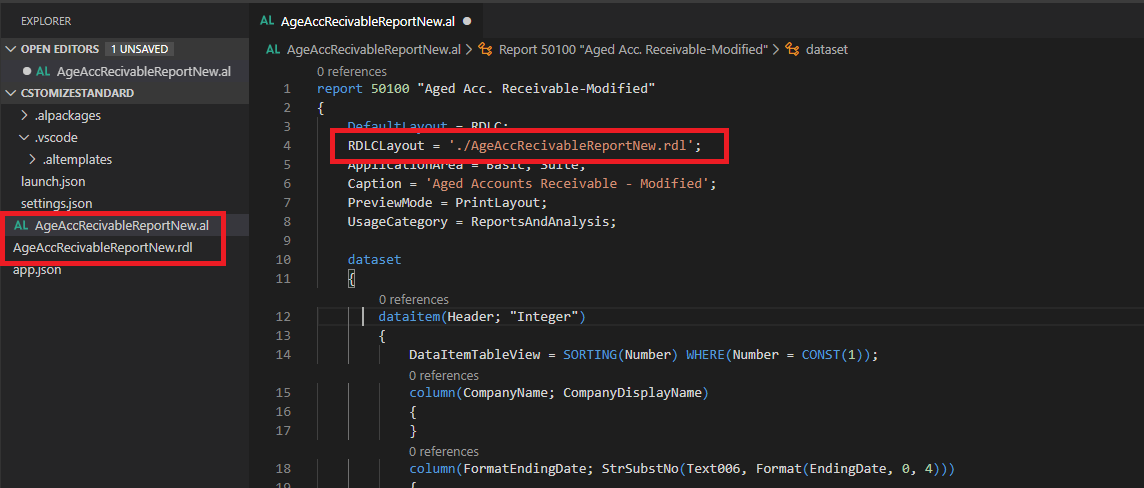
When we are creating a report as an extension we can define the path of the layout file in AL code. So i am mapping the downloaded rdl file as the layout of this report. Using Ctr + B, build the object. Now I have an exact copy of the standard report with its all functionalities. Now I can do any modification I want.


Hope this will help you.
Please provide your feedback with a comment.
Thank you and Regards,

Chameera Kavinda


Friday, September 21, 2018

Dynamics NAV Idle Time Setup (Windows Client)

Dynamics NAV Idle Time Setup (Windows Client)


Hi Everyone,

Today we will demonstrate you, how to set idle time in Dynamics NAV for windows client. 
As we all understand, most of the companies need a cost effective ERP solution today and the number of license purchased by the company can be very limited. 

If any user has logged in to the system but doesn't do any work, another user will not be able to work because Dynamics NAV will give an error restricting the user log in as all licenses are in use at that time.

So the solution for this issue is setting up a maximum idle time for the client. Therefore, if any user is logged in but not using the system, the system will automatically end the session of the user.


The first step is to open Dynamics NAV 2017 Administration.

Idle Time setup - Dynamics NAV

Then you have to select the instance that is been used currently.


Idle Time Setup


The go to the client services tab --> idle time out --> Edit

Idle Time setup - Dynamics NAV


Type the time out in following format (hh:mm:ss) > Save

Example: For a time out after 15 mins of idle time, you have to set the time as below,


Once the time is set, select the server and restart the server (By clicking right button of the mouse)

Idle Time setup - Dynamics NAV

Thank you.

Have a good day. 😊

Thil.


Monday, September 17, 2018

What is Microsoft Dynamics NAV ?


Microsoft Dynamics NAV is an 
The product is part of the Microsoft Dynamics family, and intended to assist with financemanufacturingcustomer
 relationship managementsupply chainsanalytics and electronic commerce
 for Small and Medium-sized Enterprise and 
local subsidiaries of large international 
Groups. 
For modifications of the system, the
 proprietary programming language
 C/AL is used.


History
Microsoft Dynamics NAV originates from Navision, a suite of accounting applications which Microsoft acquired in 2002.
Navision originated at PC&C A/S (Personal Computing and Consulting), a company founded in Denmark in 1984. PC&C released its first accounting package, PCPlus, in 1985 - a single-user application with basic accounting functionality. There followed in 1987 the first version of Navision,[1] a client/server-based accounting application that allowed multiple users to access the system simultaneously.The success of the product prompted the company to rename itself to Navision Software A/S in 1995.
The Navision product sold primarily in Denmark until 1990. From Navision version 3 the product was distributed in other European countries, including Germany and the United Kingdom.
In 1995 the first version of Navision based on Microsoft Windows 95 was released.
In 2000, Navision Software A/S merged with fellow Danish firm Damgaard A/S (founded 1983) to form NavisionDamgard A/S. In 2001 the company changed its name to "Navision A/S".
On July 11, 2002 Microsoft bought Navision A/S to go with its previous acquisition of Great Plains. Navision became new division in Microsoft, named Microsoft Business Solutions, which also handled Microsoft CRM.
In 2003 Microsoft announced plans to develop an entirely new ERP system (Project Green). But it later decided to continue development of all ERP systems (Dynamics AX, Dynamics NAV, Dynamics GP and Dynamics SL). Microsoft launched all four ERP systems with the same new role-based user-interface, SQL-based reporting and analysis, SharePoint-based portal, Pocket PC-based mobile clients and integration with Microsoft Office.
In September 2005 Microsoft re-branded the product and re-released it as Microsoft Dynamics NAV.
In December 2008 Microsoft released Dynamics NAV 2009, which contains both the original "classic" client, as well as a new three-tier GUI called the RoleTailored Client (RTC).
In October 2013, Microsoft released Dynamics NAV 2013, which was available with the RTC only, and introduced support for 64-bit Windows operating systems as well as a redesign of storing dimension sets, interoperability with SharePoint, and a web client.
In October 2014, Microsoft released Dynamics NAV 2015. This version’s improvements feature the tablet client, document reporting using Microsoft Word, Bank Integration, and more.
In October 2015, Microsoft released NAV 2016 features enhancements in reporting and email integration, deferral accounting, and posting preview function.
Microsoft continues to invest in Dynamics NAV and is now on an annual release cycle.
The product itself has gone through several name changes over the time. Initially "Navigator" was used in Denmark, although most Danish users knew it as "IBM-Navigator", as IBM distributed the software. Internationally it was sold as "Navision", except in the U.S., where it was called "Avista". The names "Navision Financials", "Navision Solutions", "Navision Attain", "Microsoft Business Solutions - Navision Edition", and - as of 2014 - "Microsoft Dynamics NAV" (pronounced N-A-V, except in the U.S. where most customers simply say "nav" - short for "Navision") have all been used to refer to this product.

How to Customize a standard report in Dynamics Business Central SaaS

Good day to you..… From this article, I am going to give a solution to a problem which I have seen most of forums. As all of you are aw...