Showing posts with label NAV2016. Show all posts

Friday, September 21, 2018

Dynamics NAV Idle Time Setup (Windows Client)

Dynamics NAV Idle Time Setup (Windows Client)


Hi Everyone,

Today we will demonstrate you, how to set idle time in Dynamics NAV for windows client. 
As we all understand, most of the companies need a cost effective ERP solution today and the number of license purchased by the company can be very limited. 

If any user has logged in to the system but doesn't do any work, another user will not be able to work because Dynamics NAV will give an error restricting the user log in as all licenses are in use at that time.

So the solution for this issue is setting up a maximum idle time for the client. Therefore, if any user is logged in but not using the system, the system will automatically end the session of the user.


The first step is to open Dynamics NAV 2017 Administration.

Idle Time setup - Dynamics NAV

Then you have to select the instance that is been used currently.


Idle Time Setup


The go to the client services tab --> idle time out --> Edit

Idle Time setup - Dynamics NAV


Type the time out in following format (hh:mm:ss) > Save

Example: For a time out after 15 mins of idle time, you have to set the time as below,


Once the time is set, select the server and restart the server (By clicking right button of the mouse)

Idle Time setup - Dynamics NAV

Thank you.

Have a good day. 😊

Thil.


Tuesday, September 18, 2018

Change Log - Dynamics NAV

Change Log - Dynamics NAV

Hello All,

In this post, we will be explaining how the change log in Dynamics NAV works. As we all agree,  proper user activity tracking is an important aspect to consider when selecting an ERP system. The administrators should be able to locate the changes and the errors in data from masters to day to day journal entries. 

Dynamics NAV provides the capability to track the modifications done by any user in any  table with the date and time. 

Forthcoming blog will guide you to setup and view change logs in Dynamics NAV.

Setting up Change Logs

You can setup the change log from,

Departments --> Administration --> IT Administration --> General --> Change Log Setup or you can simply type Change Log Setup in Search Bar

To activate change logs, mark change log activated as below,


Change log-User Activity Tracking-Dynamics NAV

Once the change log is activated, you need to define which tables should record the change log. This can be done by selecting tables in action pane.

Change log-User Activity Tracking-Dynamics NAV


You can enable the change log for three types of changes.

1. Log Insertion
2. Log Modification
3. Log Deletion


The changes can be applied for all fields or some fields.


Change log-User Activity Tracking-Dynamics NAV


If you select Some Fields, make sure you select the fields you want to enable change log, by clicking assist edit.

Change log-User Activity Tracking-Dynamics NAV

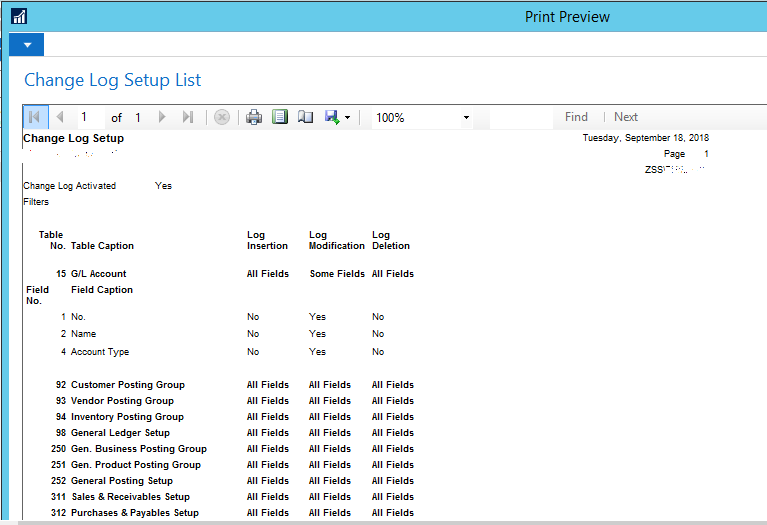
If you want to see the list of tables, which you have added change log you can simply run change log setup list report.

Change log-User Activity Tracking-Dynamics NAV


Okay now we're done with setting up the change log. 👍 Let's move to viewing change logs.

Viewing Change Logs

Viewing change logs is very easy if you know how to filter the information. The change logs can be viewed,

Departments --> Administration --> Application Setup -->  General --> Change Log Entries

Change log-User Activity Tracking-Dynamics NAV


You can add the filters to any field and track the data changes in your system 😀 As an example, if you want to see the activities of a specific date, you can add the date as a filter or you can add multiple filters according to your preference.

Hope this blog was helpful for you!

Have a Good Day!! 😃

Thil

How to Customize a standard report in Dynamics Business Central SaaS

Good day to you..… From this article, I am going to give a solution to a problem which I have seen most of forums. As all of you are aw...